

Prerequisites
Before starting this tutorial, ensure you have thenx1_ingest permission.
Add the public URL to the portal
- Log in to NexusOne.
- On the NexusOne homepage, navigate to Ingest > File > Public File URL.
- In File URL, enter the following URL to an ORC file:
Add ingest details
Add the following information to the fields:- Name:
orc_url - Schema:
orc_url_schema - Table:
orc_url_table - Schedule:
Run Once - Mode:
append - Tags: Don’t add any tags
Monitor job
When you ingest the file, this creates an Airflow job. To monitor the status of the job, use the following steps:- Click View Jobs or navigate to the NexusOne homepage and click Monitor.
- Find your job name,
orc_url, in the list, and watch its current status. - Wait for a few minutes and refresh your browser until the status changes to
Completed.
Visualize your dataset
Use the following steps to visualize your dataset:- On the NexusOne homepage, click Discover to launch Superset.
- Hover your mouse over SQL, and then select SQL Lab.
- Enter the following command in the query box:
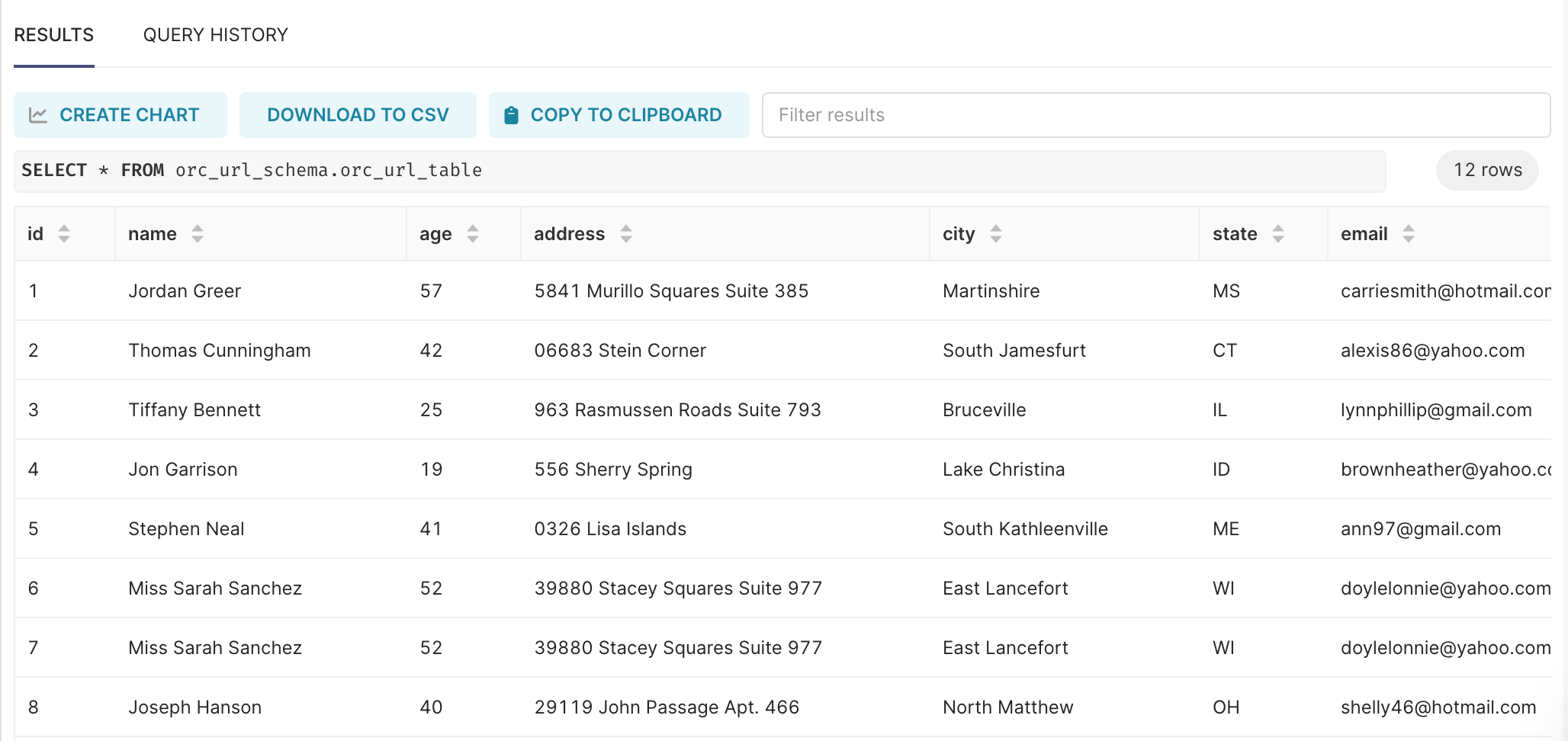
Visualize your dataset
Additional resources
- To get an overview of what file ingestion is, refer to Data ingestion overview.
- For general instructions about how to ingest a file in NexusOne, refer to How to ingest a file.
- For more information about roles or permissions, refer to Govern Overview.