

Select a schema and table
Metabase displays the schemas and tables exposed by Trino. A typical tree structure of Metabase and its connected catalog, schemas, and tables looks like the following:- From the Metabase homepage, click Databases in the Browse section on the left panel.
- Select a desired database.
- Select a desired schema.
- Select a desired table to inspect its content.
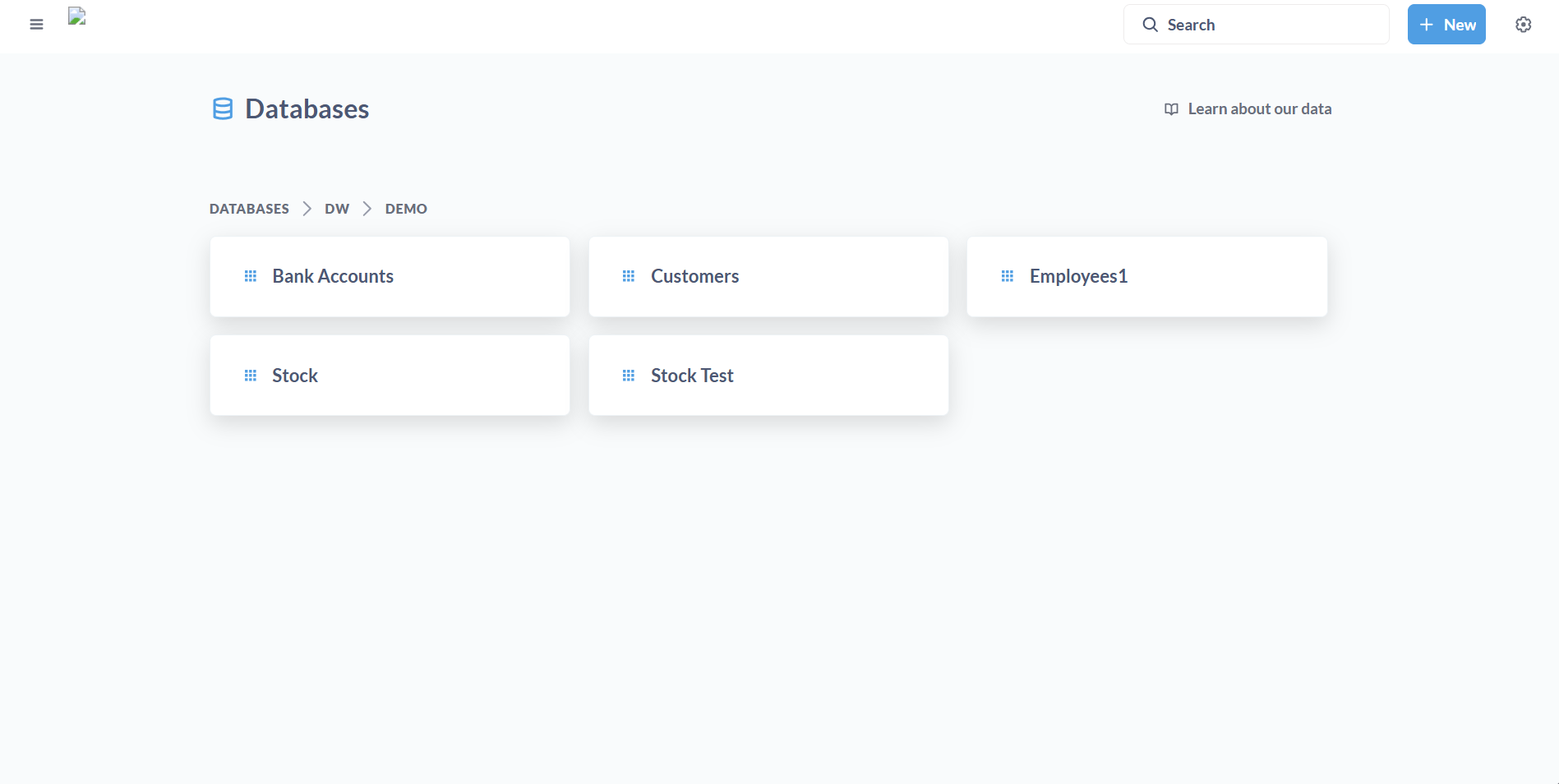
Tables inside a schema
Create a question
A question in Metabase is a saved query or visualization that extracts and displays data from your databases. You can create a question from a model, table, or previous questions. Follow these steps to create a question from a table:- From the Metabase homepage, click New > Question.
- Click Tables to choose the data you want to work with.
- Select a schema and table.
- Optional: Add filters to refine your data.
- Optional: Summarize the data by applying aggregations or groupings,
- Click Save at the top right corner of the page.
- In the Name field, enter a name for the question.
- Click Save.
Build a dashboard
Dashboards in Metabase let you combine multiple visualizations into a single view, track key metrics, and explore data interactively. Follow these steps to create a dashboard:- From the Metabase homepage, click New > Dashboard.
- In the Name field, enter a name for the dashboard.
- Click Create.
- Create a question.
- In the saved question page, click the three dots
...menu at the top right corner of the page. - Click Add to dashboard > New dashboard.
- In the Name field, enter a name for the dashboard.
- Click Create.
- Organize the layout: Drag and resize cards in a grid-style interface.
- Add dashboard filters: Enable cross-card filtering for cohesive exploration.
- Set a refresh schedule: Control when data updates, such as hourly or daily.
Additional resources
- To get an overview of Metabase, refer to the Metabase in NexusOne page.
- To learn about best practices when using Metabase, refer to the Metabase best practices page.
- For more details about Metabase, refer to the Metabase official documentation.
- If you are using the NexusOne portal to visualize your dataset, refer to the Discover page.