

Managing data flows
This section outlines the basic workflow for creating, configuring, and managing data flows.Create a new flow
To create a new flow, you have to add components to the canvas by doing the following:- Open the NiFi UI and navigate to the canvas.
- Use the toolbar to select the component you want to add. This can be
any of the following:
- Processor
- Process group
- Input/Output port
- Funnel
- Drag the component onto the canvas and position it as needed.
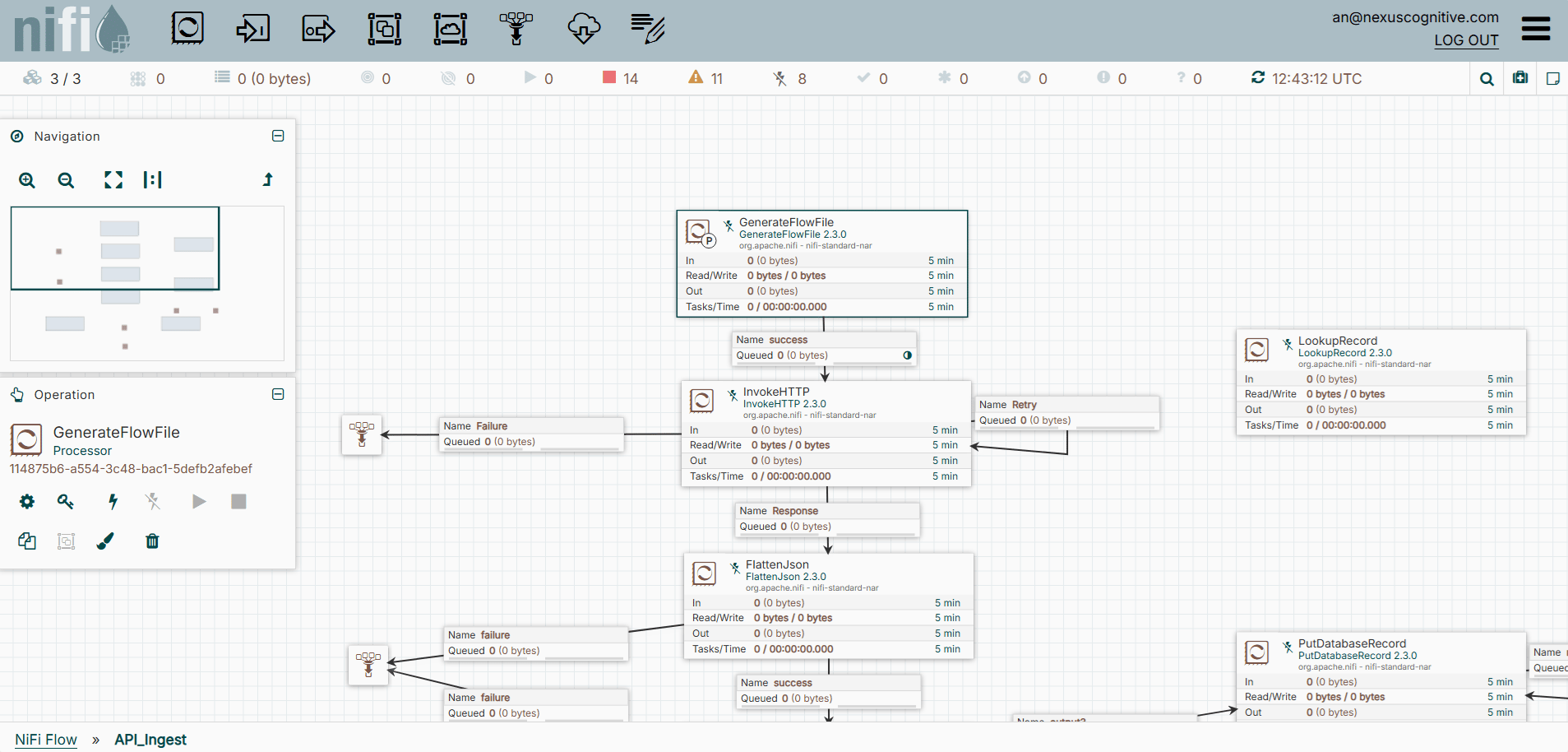
A sample flow
Configure processors
Each processor defines a specific action within a flow. To configure a processor do the following:- Right-click or control-click a previously added processor, and then select Configure.
- Set required properties, such as the connection URLs, file paths, or format settings.
- Adjust Scheduling options such as the run frequency or concurrent tasks.
- Review and apply any relationships that determine FlowFile routing after processing.
NiFi can only start valid and configured processors.
Connect components
Connections define the path that data follows. To connect two or more components, do the following:- Hover over a processor’s arrow and drag it to another component to create a connection.
- Configure the connection to specify the following:
- Accepted relationships
- Back-pressure thresholds
- Prioritization or load-balancing options
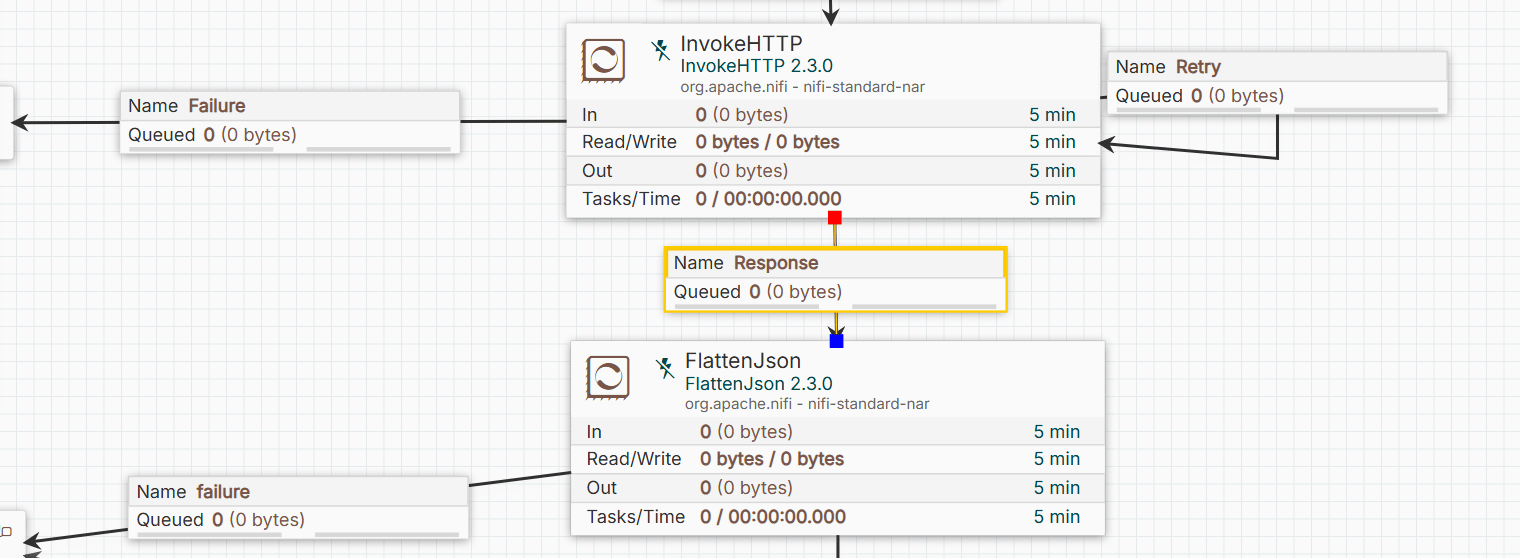
A sample of connected components
Using variables
Variables help simplify configuration and improve maintainability. Do the following when using a variable:- Define variables at the process group level.
- Reference variables in processor properties using
${variable_name}syntax.
Enable and use controller services
Controller services provide shared configurations used by multiple processors. It also helps avoid redundant configuration and ensure consistency. To enable and use controller services, do the following:- Open the controller services tab by right-clicking or control-clicking an empty canvas or a process group and selecting Controller Services.
- Add and configure a service, such as a database connection pool, record reader, or SSL context.
- Enable the service.
Start and stop components
NiFi allows granular control over component execution. This includes the following:- Start: Begin execution of a processor or process group.
- Stop: Halt execution without removing configuration.
- Enable or Disable: Control whether a component can run.
- Start or stop process group: Apply actions to all components within the group.
Additional options for managing a data flow
Effective flow management helps ensure reliable operation and simplifies debugging and maintenance. Several options help manage and maintain dataflows. This includes:- Status bar: Observe the status bar for component states, errors, and back-pressure.
- Data provenance: Use data provenance to trace the lifecycle of FlowFiles.
- Bulletin board: Check the bulletin board for warnings and error messages.
- Templates or versioned flows: Apply templates or versioned flows for reusability and consistent deployment.
Managing processors
Processors are the core building blocks of NiFi dataflows. Each processor performs a specific operation on FlowFiles, such as ingesting data, transforming content, routing, or delivering data to a destination.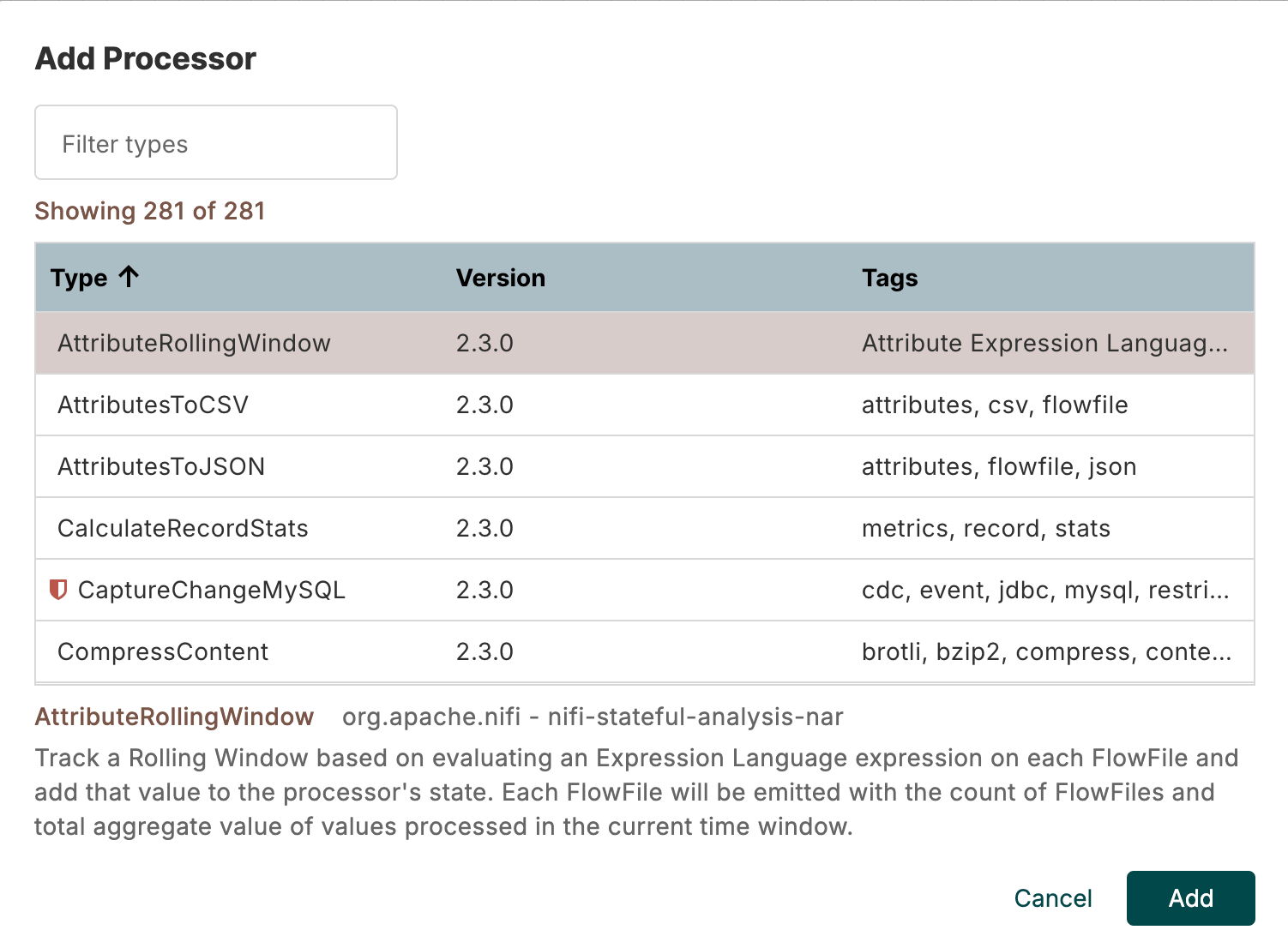
Processors
Data ingestion processors
These processors ingest data into NiFi from various sources. One example is theGetFile processor. To configure the GetFile data ingestion processor,
do the following:
- Drag a processor component onto the canvas.
- Search for the
GetFiledata ingestion processor, and click Add. - Right-click or control-click the processor, and then select Configure.
- Set the Input Directory property to the folder containing files to ingest, then click Apply.
- Connect it to the next processor in your flow.
- Start each processor to begin pulling files into NiFi.
GetS3Object/ListS3: Retrieves objects from Amazon S3ConsumeKafka/ConsumeKafkaRecord_2_0: Consumes messages from Kafka topicsListenHTTP/HandleHTTP: Accepts data via HTTP requestsQueryDatabaseTable/ExecuteSQL: Reads data from relational databases
Data transformation processors
These processors modify or enrich the content or attributes of FlowFiles. One example is theUpdateAttribute processor. To configure the UpdateAttribute
data transformation processor, do the following:
- Drag a processor component onto the canvas.
- Search for the
UpdateAttributedata transformation processor, and click Add. - Right-click or control-click the processor, and select Configure.
- Add a new attribute, then click Apply.
- Connect it to another processor.
- Start each processor to modify the FlowFile attributes.
ReplaceText/ReplaceTextWithMapping: Performs string replacements or regular expression transformationsJoltTransformJSON: Transforms JSON data using Jolt specificationsAttributesToJSON/AttributesToXML: Converts FlowFile attributes to structured contentConvertRecord/ConvertAvroToJSON/ConvertJSONToCSV: Converts data between formats
Data routing processors
These processors determine the direction of FlowFiles through a flow. One example is theRouteOnAttribute processor. To configure the RouteOnAttribute
data routing processor, do the following:
- Drag a processor component onto the canvas.
- Select the
RouteOnAttributedata ingestion processor, and click Add. - Right-click or control-click the processor, and then select Configure.
- Configure a routing strategy.
- Connect it to another processor producing FlowFiles.
- Start each processor to route FlowFiles based on attributes.
RouteOnContent: Routes FlowFiles based on content patternsRouteOnRelationship: Routes FlowFiles based on processing outcomesMergeContent/MergeRecord: Combines multiple FlowFiles into one, based on content or schema
Data delivery processors
These processors send data to external systems. One example is thePutFile
processor. To configure the PutFile data delivery processor, do the following:
- Drag a processor component onto the canvas.
- Select the
PutFiledata ingestion processor, and then click Add. - Right-click or control-click the processor, and then select Configure.
- Configure the Directory property where FlowFiles write to.
- Connect it to another processor with a custom configuration.
- Start each processor to deliver FlowFiles to the target directory.
PutS3Object: Uploads FlowFiles to Amazon S3PutDatabaseRecord/PutSQL: Writes data into relational databasesPublishKafka/PublishKafkaRecord_2_0: Sends messages to Kafka topicsPutHDFS/PutHBase: Writes data to Hadoop or HBase
Utility and monitoring processors
These processors provide operational or auxiliary functions. One example is theLogAttribute
processor. To configure the LogAttribute utility and monitoring processor, do the following:
- Drag a processor component onto the canvas.
- Select the
LogAttributeutility and monitoring processor, and then click Add. - Right-click or control-click the processor, and then select Configure.
- Add a custom configuration.
- Connect it to another processor with a custom configuration.
- Start each processor to log FlowFile attributes for monitoring and debugging.
GenerateFlowFile: Creates test dataUpdateRecord: Updates record fields using schema-aware operationsValidateRecord: Validates data against a schema or rulesControlRate: Throttles the FlowFile flow rate
Controller services and shared resources
A controller service is a NiFi component that exposes a common capability or configuration to other processors. Examples include:- Database connection pools
- SSL/TLS context services for secure connections
- Record readers and writers for structured data such as CSV, JSON, or Avro
- Schema registries for data validation and transformation
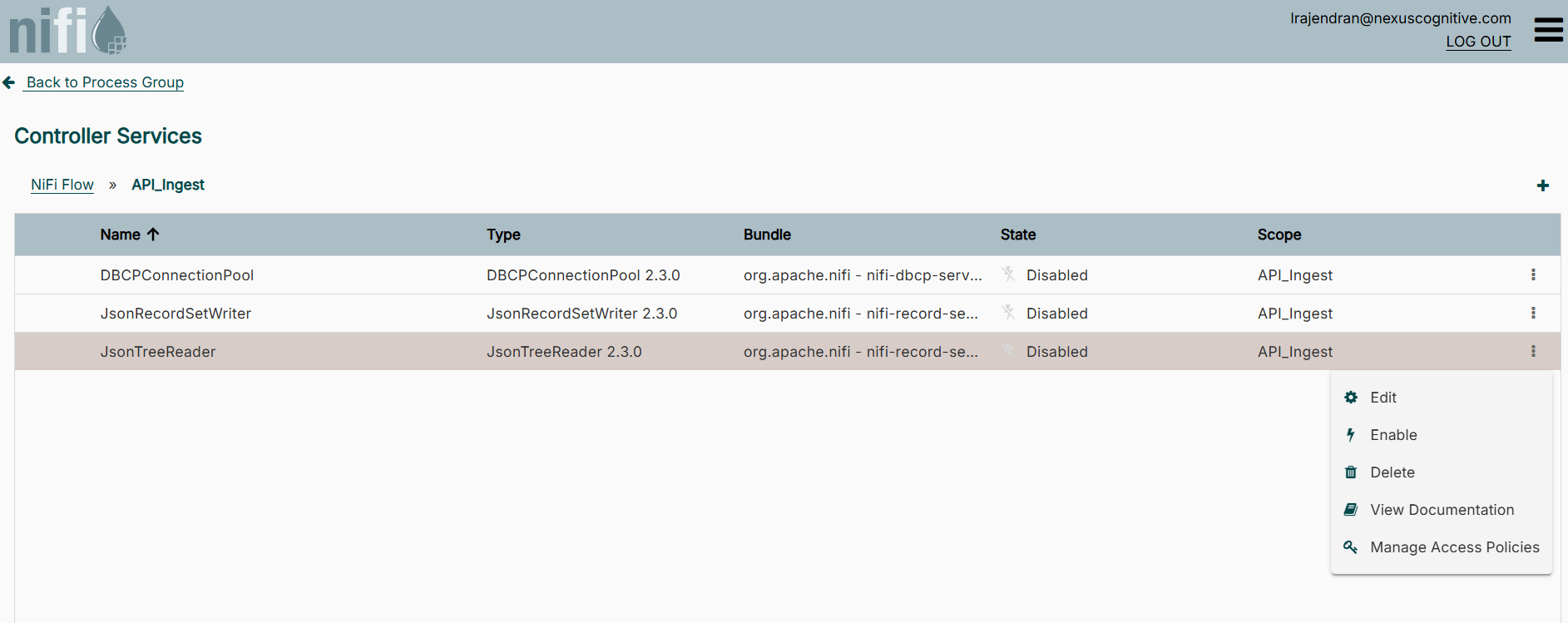
Controller services
Add and configure a controller service
You can add and configure a controller service by doing the following:- On an empty canvas or process group, right-click, or control-click and then select Controller Services.
- Click the plus sign at the left to add a controller service.
- Search for a service type, select it, and click Add.
- Click the three dots at the right, and then select Edit to configure the service type properties.
- Click Apply to save your edit.
Manage a controller service state
Controller services have an operational state that controls whether processors can use them. You change this state by doing the following:- Add a controller service
- On an empty canvas or process group, right-click, or control-click, and then select Enable or Disable.
Monitoring, logging, and troubleshooting
Effective monitoring and troubleshooting are essential to ensure NiFi dataflows operate reliably. NiFi provides a range of tools and features to observe flow activity, diagnose issues, and maintain operational visibility.Monitor the flow
You can view a processor and its connection status by taking the following steps:- Observe the status bar on processors and connections.
- Identify running, stopped, or invalid components.
- Identify back-pressure indicators on connections.
- Locate a connection between two components.
- View the queued FlowFile count and data size displayed on the connection.
- Right-click or control-click the connection to view additional queue details.
- At the top right corner of the NiFi page, click the three lines and select Bulletin Board.
- Review the generated bulletins.
View data provenance
NiFi tracks the full lifecycle of each FlowFile so it can provide visibility into how data moves through a flow. You can view data provenance by doing the following:- At the top right corner of the NiFi page, click the three lines and select Data Provenance.
- Select a specific event to view its details or see its lineage.
View logs
NiFi logs events and system activity to files for operational analysis. You can view these logs by doing the following:- Access the NiFi node.
- Navigate to the NiFi logs directory.
- Open log files to inspect runtime activity.
- Review entries categorized by log level, such as
DEBUG,INFO,WARN, orERROR.
Troubleshooting tips
Use the following actions to inspect and resolve issues in a NiFi flow:- Check processor status and bulletins: Quickly identify processors that are failing or misconfigured.
- Inspect logs: Look for errors, exceptions, or connectivity issues in the NiFi app logs.
- Monitor queue sizes: Large queues may indicate bottlenecks or downstream performance issues.
- Review data provenance: Trace the path of individual FlowFiles to understand where problems occur.
- Test with small data samples: Use test FlowFiles to isolate and debug flow logic without processing large volumes of data.
- Validate configuration: Ensure processors, controller services, and connections are properly configured and enabled.
Additional resources
- To get an overview of NiFi, refer to the NiFi in NexusOne page.
- To learn about best practices when using NiFi, refer to the NiFi best practices page.
- For more details about NiFi, refer to the NiFi official documentation.