

Prerequisite
Before starting this tutorial, ensure you have the following:- Required roles:
nx1_ingestandsuperset_user. - A table from the Add a CSV file from a public URL tutorial.
This tutorial uses its
csv_url_schema.csv_url_tabletable as the source. - While configuring variables to deploy NexusOne,
your
ranger_repo_modevariable has the valueshared. This ensures you have thenx1-unifiedsqlservice name. NexusOne supports other values too, but this tutorial usesshared. - Two separate Ranger policies that your platform
administrator creates for you:
- A policy on the
csv_url_schemaschema. It should grant theselectpermission. - A policy on the schema you ingest into, such as
csv_schema_destin theicebergcatalog. It should grant thealter,create,drop,insert,select, andupdatepermissions.
- A policy on the
- When you create both Ranger policies, assign them to the
nx1_ingestorsuperset_userrole.
Select the source table
- Log in to NexusOne.
- On the top navigation bar, hover your mouse over Data, and then select Ingest.
- Click New pipeline.
- In the Source step, select Lakehouse table.
-
Select the table you want to copy:
- Catalog:
iceberg - Schema:
csv_url_schema - Table:
csv_url_table
- Catalog:
- Click Next.
Add ingest details
- In the Preview and schema step, don’t add any column changes, click Next.
-
In the Destination step, enter the following information in the fields:
- Schema:
csv_schema_dest - Table:
csv_table_dest - Mode:
Append - Pipeline name:
lakehouse_copy - Schedule:
Once
- Schema:
- Click Next.
- In the Governance step, don’t add any tags or domain, click Next.
- In the Review step, click Create pipeline.
Monitor the pipeline
When you create the pipeline, NexusOne creates an Airflow job and opens the Ingest page, which lists your pipelines in a table. Since you set the pipeline to run once, as soon as it’s created, you can monitor the run using the following steps:- On the Ingest page, click the All tab to show pipelines with any status.
- Select Mine to show only your pipelines.
- In the table, find your pipeline,
lakehouse_copy, and click it. - On the pipeline’s page, click the Runs tab.
- Find the latest run in the list, and watch its status in the Result column.
- Wait for a few minutes and refresh your browser until the status in the Result column changes to
Succeeded.
Visualize your dataset
Use the following steps to visualize your dataset:- On the top navigation bar, hover your mouse over Platform, and then select Tools.
- On the Superset card, click SQL Lab to launch Superset’s SQL Lab.
-
Enter the following command in the query box:
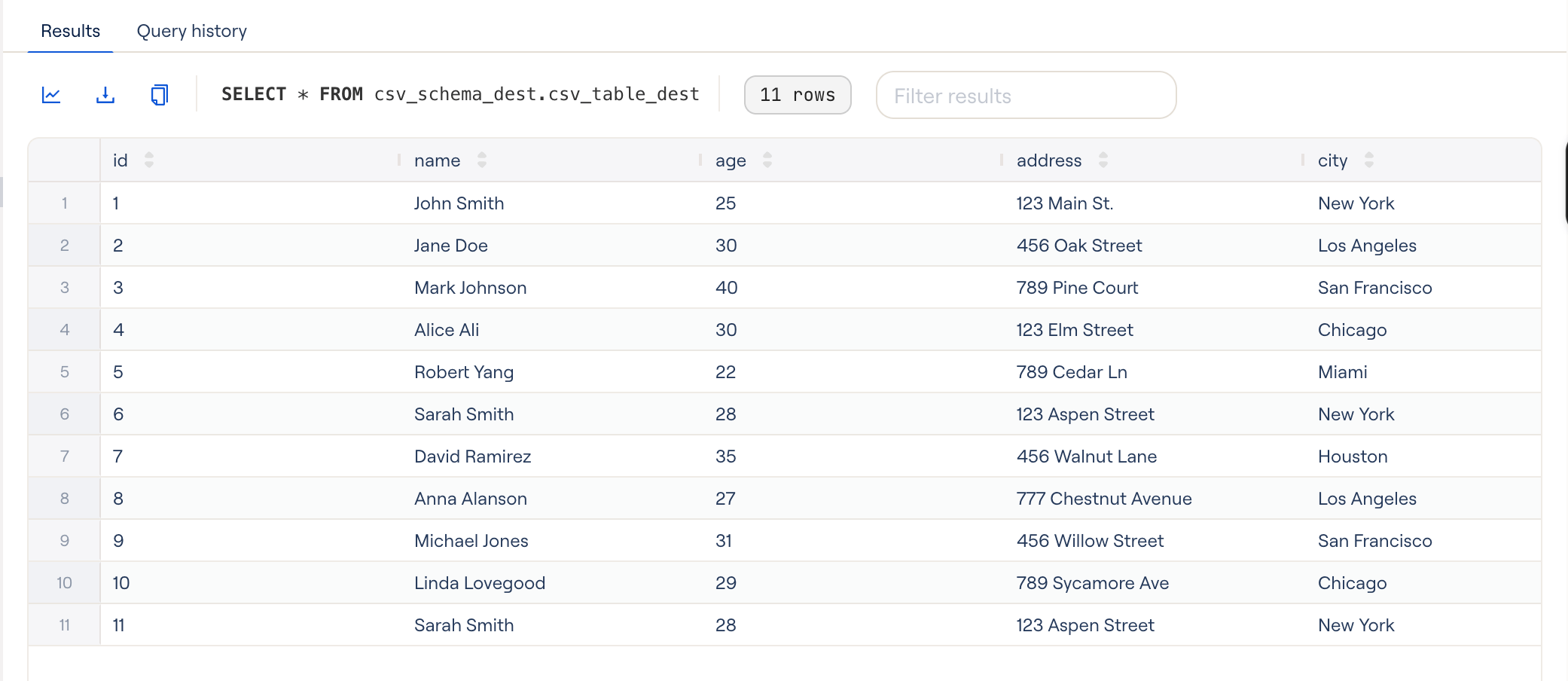
The result has the same rows as
csv_url_schema.csv_url_tableAdditional resources
- To get an overview of what ingestion is, refer to Data ingestion overview.
- For general instructions about how to ingest a lakehouse in NexusOne, refer to Ingest a lakehouse.
- For more information about roles or permissions, refer to Govern Overview.